
How to dim a Mac screen below minimum brightness
Use Extra Dim at night or make an unused secondary screen black, with a way to restore brightness prepared first.
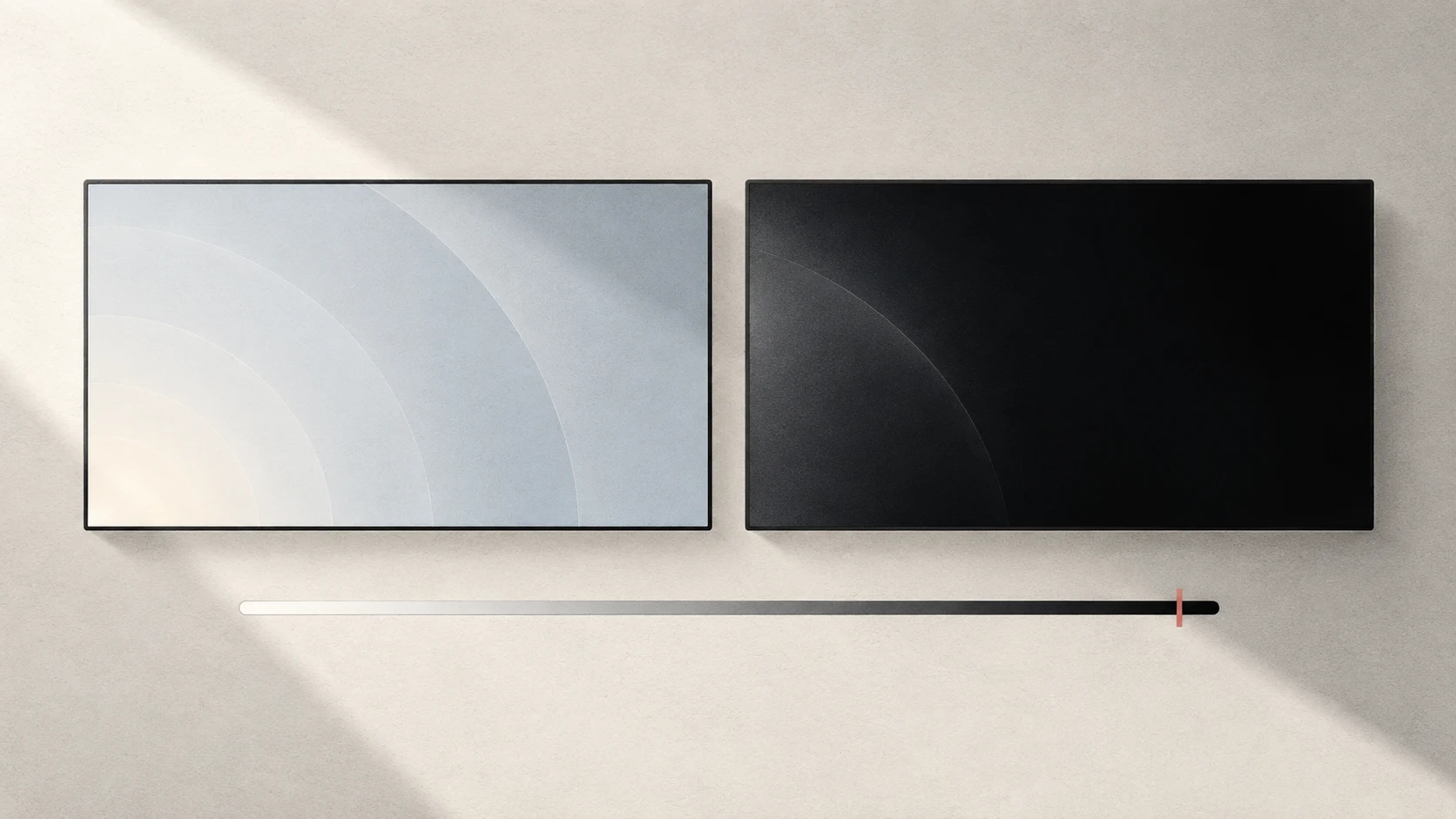
Quick answer: on displays that support Extra Dim, Tutti can darken the image below the hardware minimum. At 0%, the image is black. Prepare a working way to raise brightness before trying full black.
When it helps
You may be reading with the lights off and find minimum brightness uncomfortable. Or you may want an unused secondary screen dark while watching a movie on the main screen.
Extra Dim changes the displayed image. Full black does not disconnect the screen and is not a power-off, backlight-off or energy-saving mode. Use the monitor’s power control if you want to turn it off.
Go below the hardware minimum
Tutti display controls require macOS 15 or later. Extra Dim availability depends on the screen and connection.
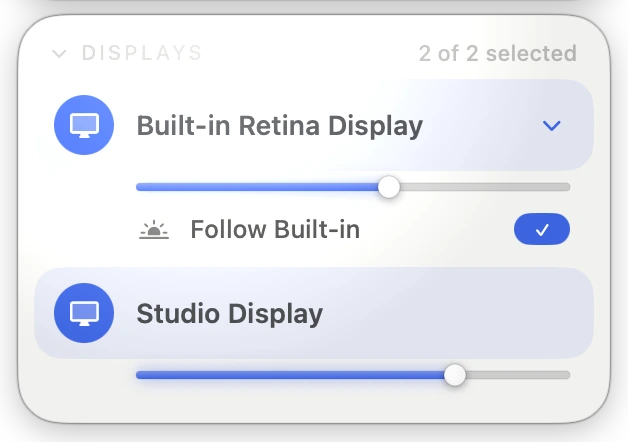
- Find the screen in the Displays card and turn off its Brightness Upscaling.
- Slowly move that screen’s brightness slider to the left.
- On Extra Dim-capable screens, 15% marks the hardware minimum. Below that point, Tutti keeps the hardware at minimum and further darkens the image.
- Stop at a comfortable level. Choose 0% only when you want the image fully black.
The 15% marker belongs to Tutti’s combined brightness scale; it does not mean 15% of hardware brightness remains. A screen without Extra Dim does not necessarily produce the same result at 0%.
Prepare a way back before going black
Raising the target screen’s brightness restores the image, but finding a slider with a mouse is difficult when you cannot see it.
- With another visible screen, first confirm you can open Tutti there and adjust the target screen’s slider.
- With only one screen, first configure and test its brightness-increase shortcut in Settings → Shortcuts.
- If you cannot prepare a reliable recovery action, keep brightness at a visible level.
Do not assume moving the mouse will restore the image. Extra Dim black is not display sleep.
What about colors?
Extra Dim can affect HDR and color accuracy. Choose a comfortable level for reading, but return to 15% or above for photo editing, grading or evaluating shadow detail. Extra Dim and Brightness Upscaling cannot be enabled together.
Judge the actual dimming result on your screen.
Sources
Want simpler sound and display controls?
Tutti brings audio outputs, app volume and display brightness into one native menu bar panel.
Download Tutti