
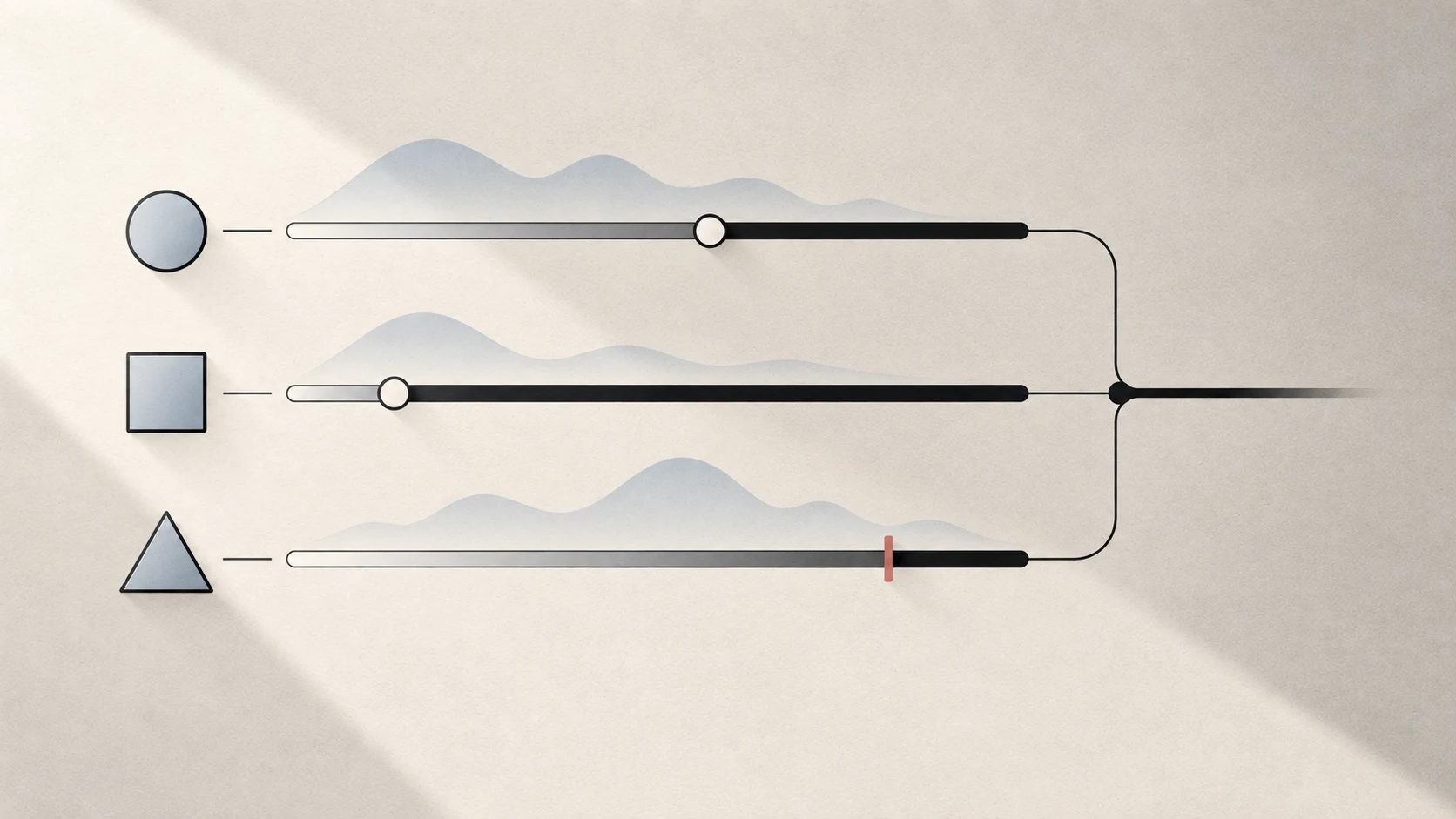
How to control the volume of each app on Mac
macOS has one output volume control, but no built-in system-wide mixer for every app. Here is what the native controls can do and how Tutti adds per-app volume on macOS 14.4 or later.
Tutti Blog
Practical guides to app volume, multiple speakers, Bluetooth and display brightness on macOS.
Set app and monitor volume without changing everything else.
macOS has one output volume control, but no built-in system-wide mixer for every app. Here is what the native controls can do and how Tutti adds per-app volume on macOS 14.4 or later.
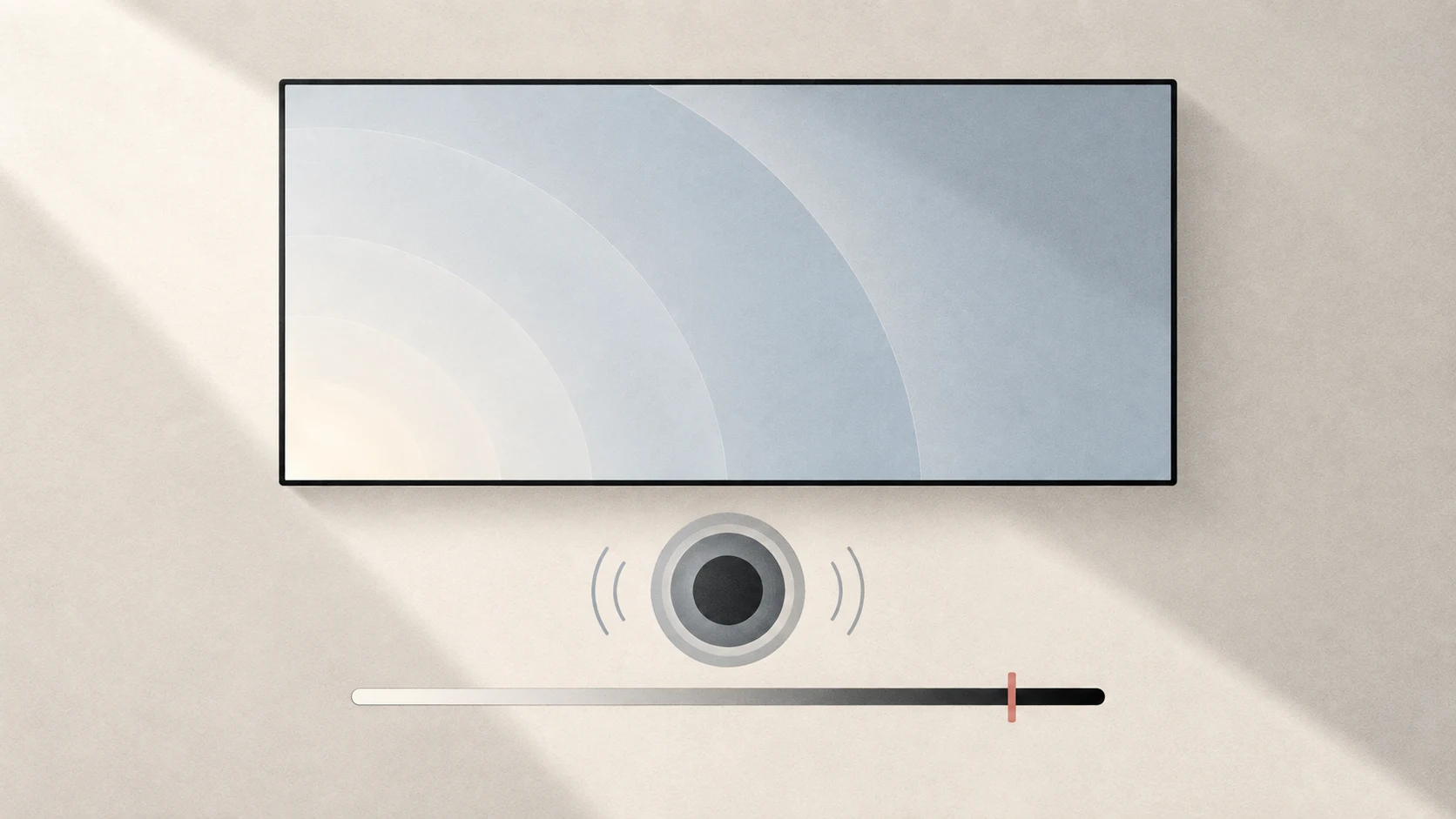
A Mac can send audio to a display, but software volume depends on what the display and connection expose. Use this checklist to identify whether macOS, the monitor, or the signal path owns the volume.
Connect speakers and headphones, and understand synchronization and wireless limits.
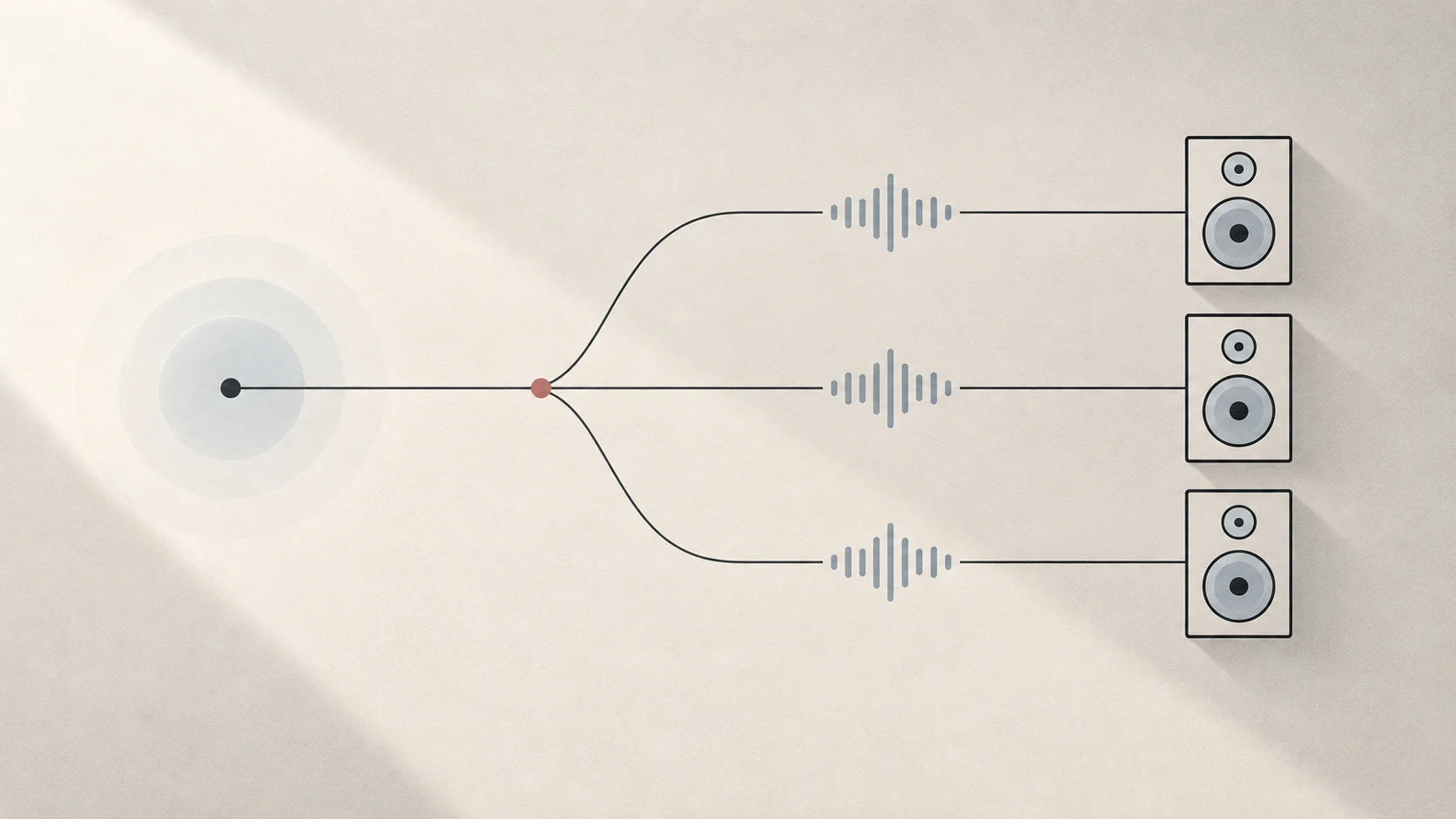
Use Audio MIDI Setup to create a Multi-Output Device and send the same Mac audio to several outputs. The setup is native, but volume control and device latency still depend on the hardware.
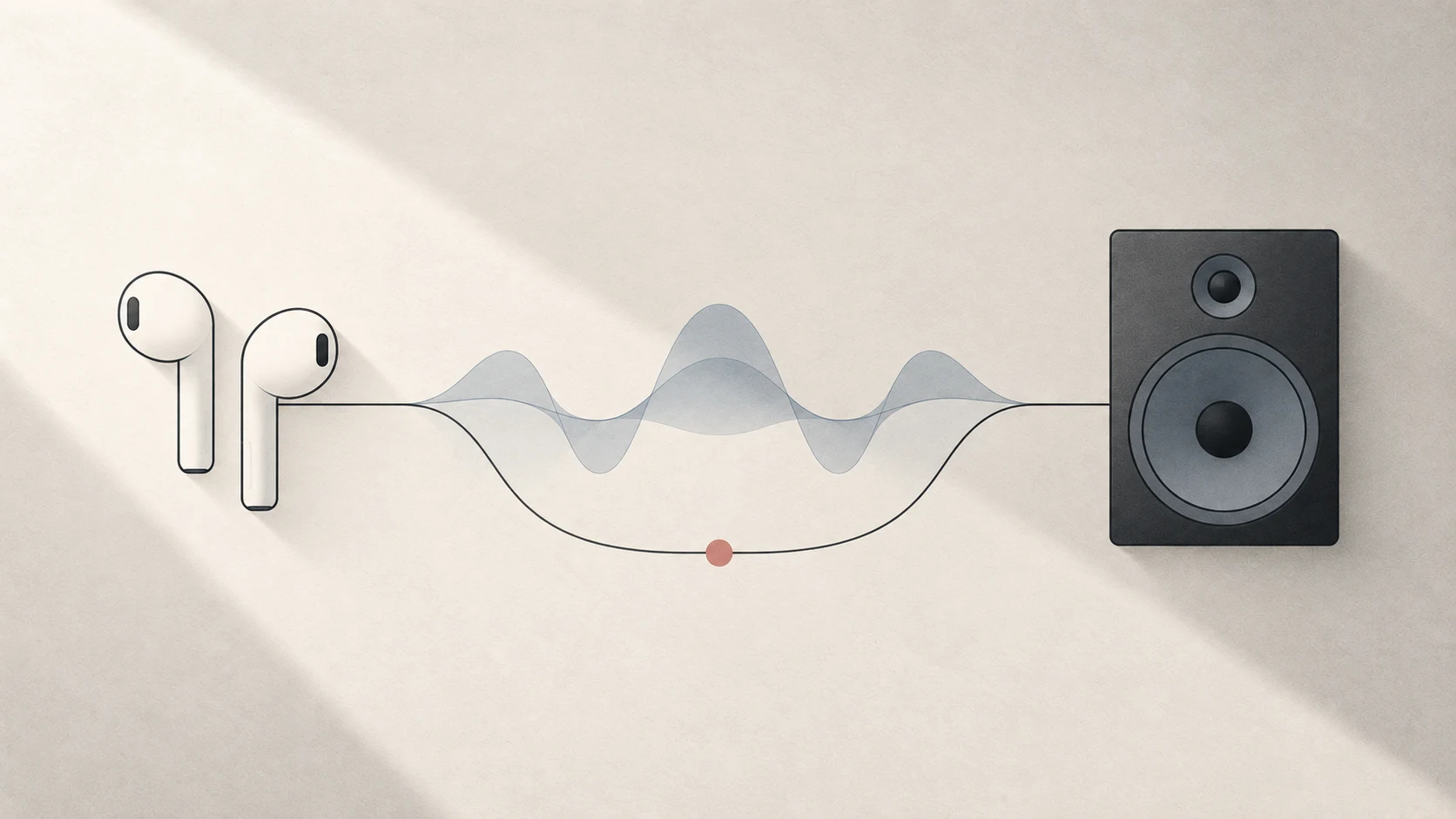
You can try combining AirPods and another available output in an Audio MIDI Setup Multi-Output Device. Whether a specific AirPods model appears and how closely the outputs align must be checked on the actual Mac.
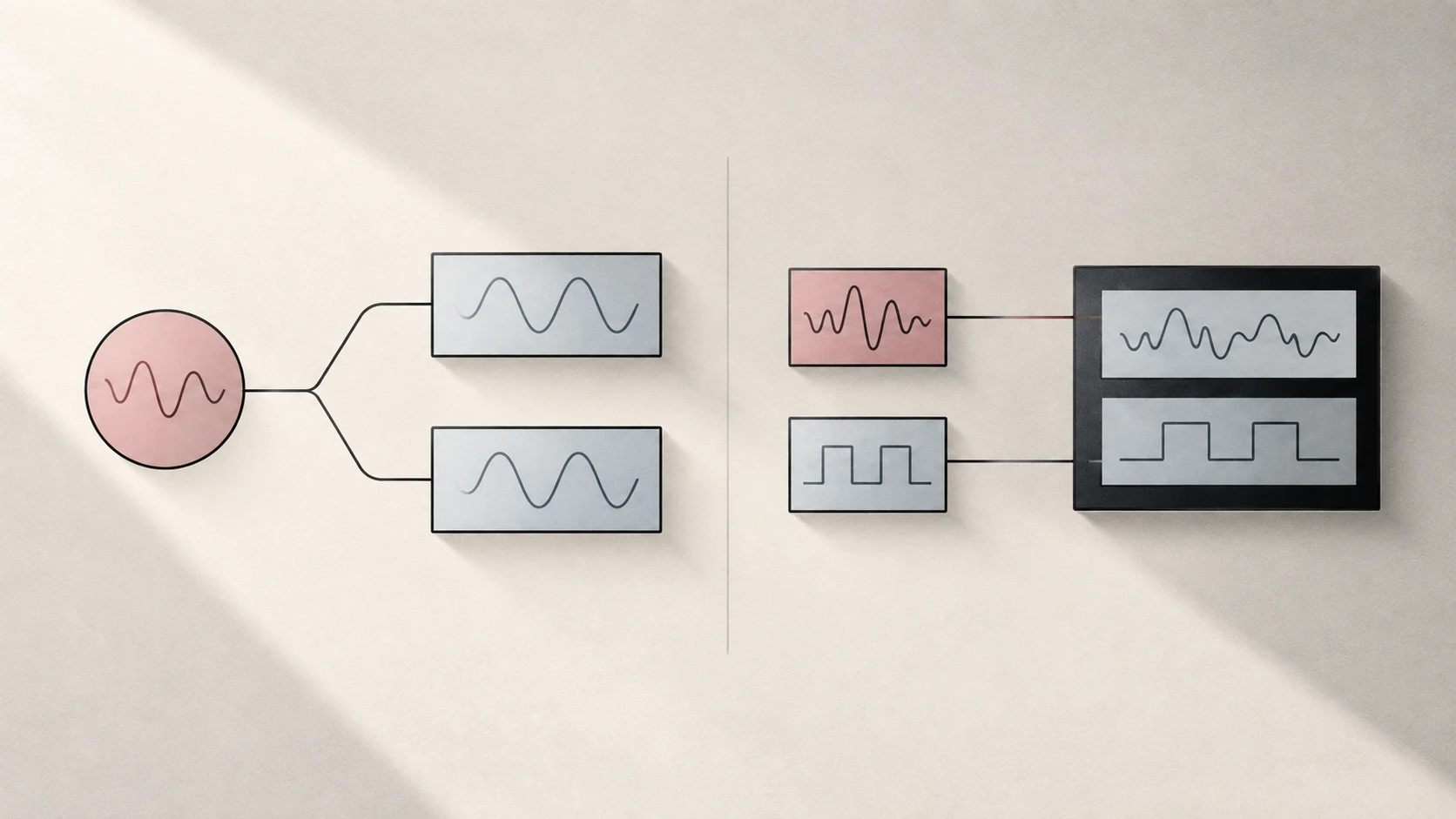
Choose a Multi-Output Device to copy the same audio to several outputs. Choose an Aggregate Device to combine separate input and output channels for audio software.
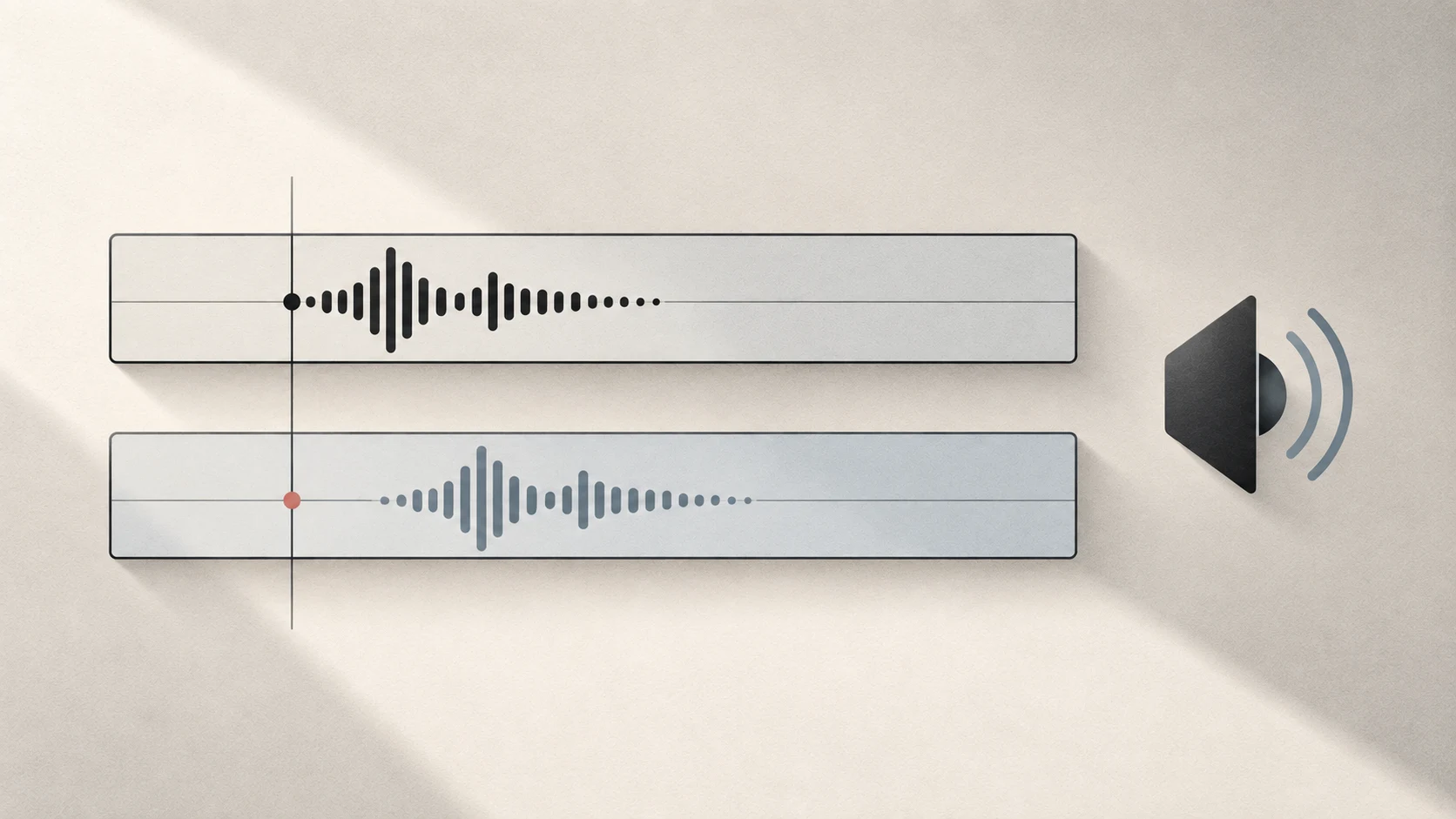
First separate fixed latency, clock drift, interference, and headset microphone mode. They sound similar, but each requires a different fix.
Adjust one screen or several, from Extra Dim to Brightness Upscaling.
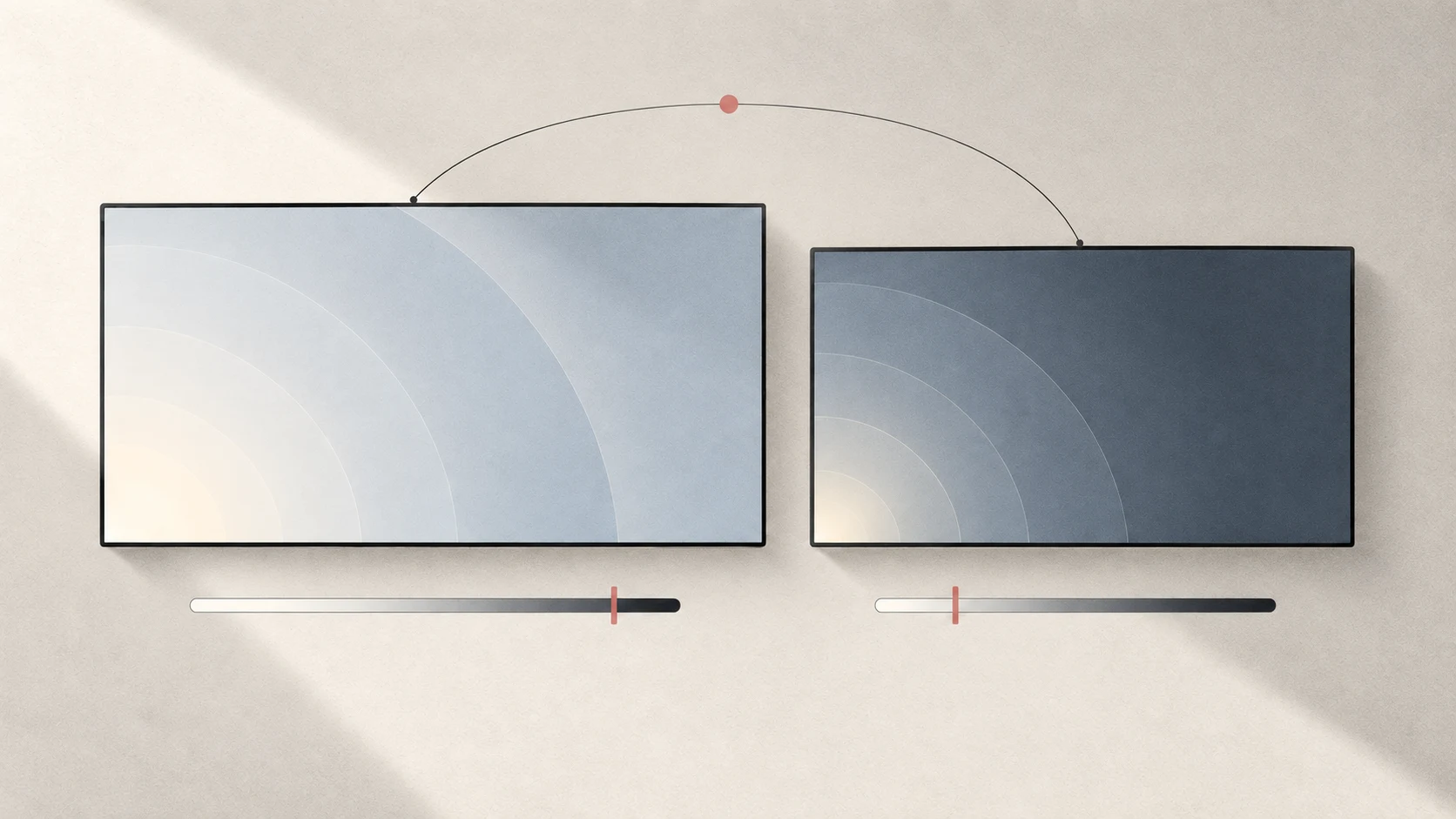
Start with macOS, then control one screen or a group. Understand why the monitor and its connection affect brightness controls.
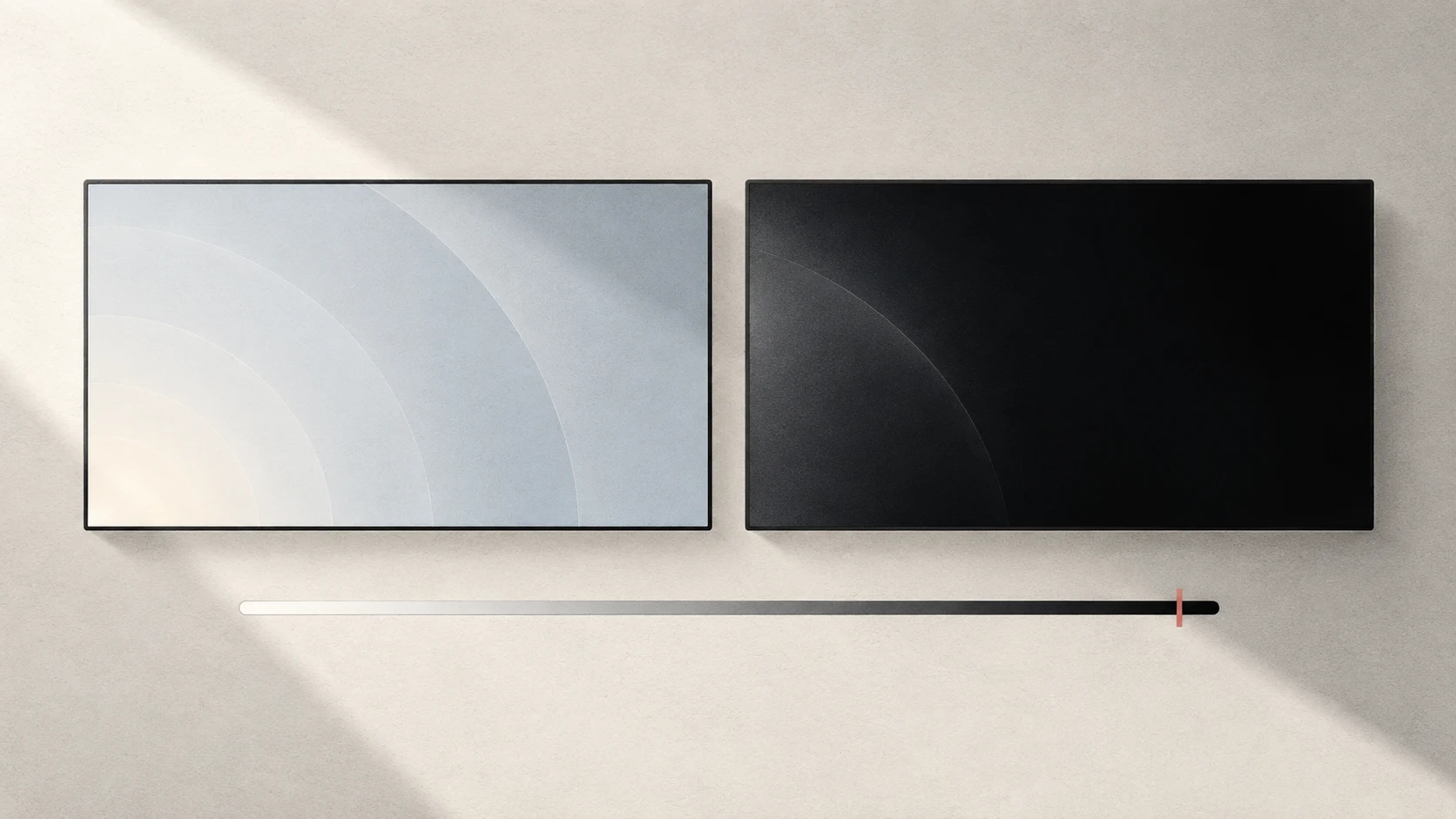
Use Extra Dim at night or make an unused secondary screen black, with a way to restore brightness prepared first.
Learn how Brightness Upscaling can improve readability on eligible displays, how to turn it on and off, and where its limits lie.