
Multi-Output Device vs Aggregate Device on Mac
Choose a Multi-Output Device to copy the same audio to several outputs. Choose an Aggregate Device to combine separate input and output channels for audio software.
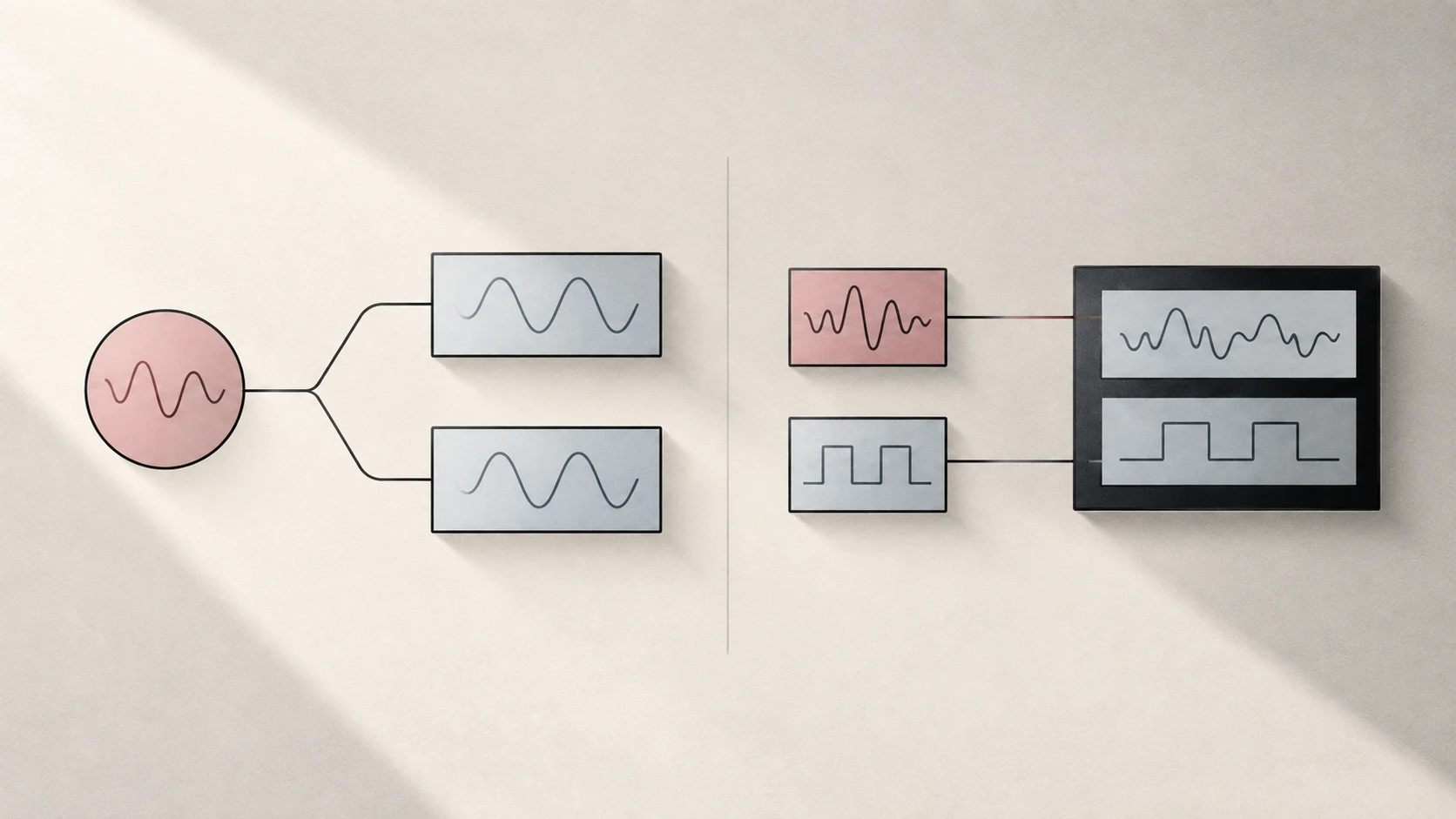
Quick answer: use a Multi-Output Device when you want the same Mac audio from several speakers. Use an Aggregate Device when an audio app needs the separate inputs and outputs of several interfaces as one larger device.
The difference in one table
| Multi-Output Device | Aggregate Device | |
|---|---|---|
| Main job | Copy one output stream to several devices | Combine discrete input and output channels |
| Typical use | Two speakers playing the same music | A DAW using two audio interfaces together |
| What the app sees | One output destination | One larger multichannel input/output device |
| Important setting | Primary Device and member outputs | Clock Source, sample rate, channels, Drift Correction |
An Aggregate Device is not a more advanced Multi-Output Device. They solve different routing problems.
Multi-Output Device: duplicate playback
In Audio MIDI Setup, click + → Create Multi-Output Device, select the outputs, and choose a Primary Device. Apple explains that audio sent to the primary device also plays through the other selected devices.
Use this when your goal is “play this same song, movie, or system audio from more than one output.”
The member devices can still have different volume capabilities and fixed latency. Drift Correction, when available, deals with clocks gradually moving apart; it does not guarantee that a Bluetooth and wired speaker begin at exactly the same instant.
Aggregate Device: combine channels
Click + → Create Aggregate Device and select the audio devices you want to combine. Apple’s example combines an eight-channel and a two-channel device into one ten-channel device.
That larger device can expose discrete inputs and outputs to software such as a digital audio workstation. The app must choose and route the right channels. Creating an Aggregate Device does not automatically duplicate one stereo pair to every connected speaker.
Clock Source, sample rate, and Drift Correction
These terms are related but not interchangeable:
- Primary Device anchors a Multi-Output Device.
- Clock Source supplies the timing reference for an Aggregate Device.
- Sample rate must match across the devices in an Aggregate Device.
- Drift Correction resamples devices that are not hardware-synchronized so their clocks do not gradually separate.
- Default output is the device macOS currently uses for normal system audio.
Drift Correction is not a delay slider. A device can remain consistently late even when its clock is not drifting.
Which should you choose?
- Choose Multi-Output for Mac speakers plus a second output playing the same content.
- Choose Aggregate when recording or production software needs more discrete channels.
- Choose neither if one physical device already provides every channel you need.
- Test the exact hardware combination before relying on it in a live or recording workflow.
Tutti’s everyday multi-output workflow is designed around selecting several outputs and controlling their levels, not exposing a studio-style combined input interface.
Sources
Want simpler sound and display controls?
Tutti brings audio outputs, app volume and display brightness into one native menu bar panel.
Download Tutti