
How to play audio through multiple speakers on Mac
Use Audio MIDI Setup to create a Multi-Output Device and send the same Mac audio to several outputs. The setup is native, but volume control and device latency still depend on the hardware.
Updated Aug 1, 2026
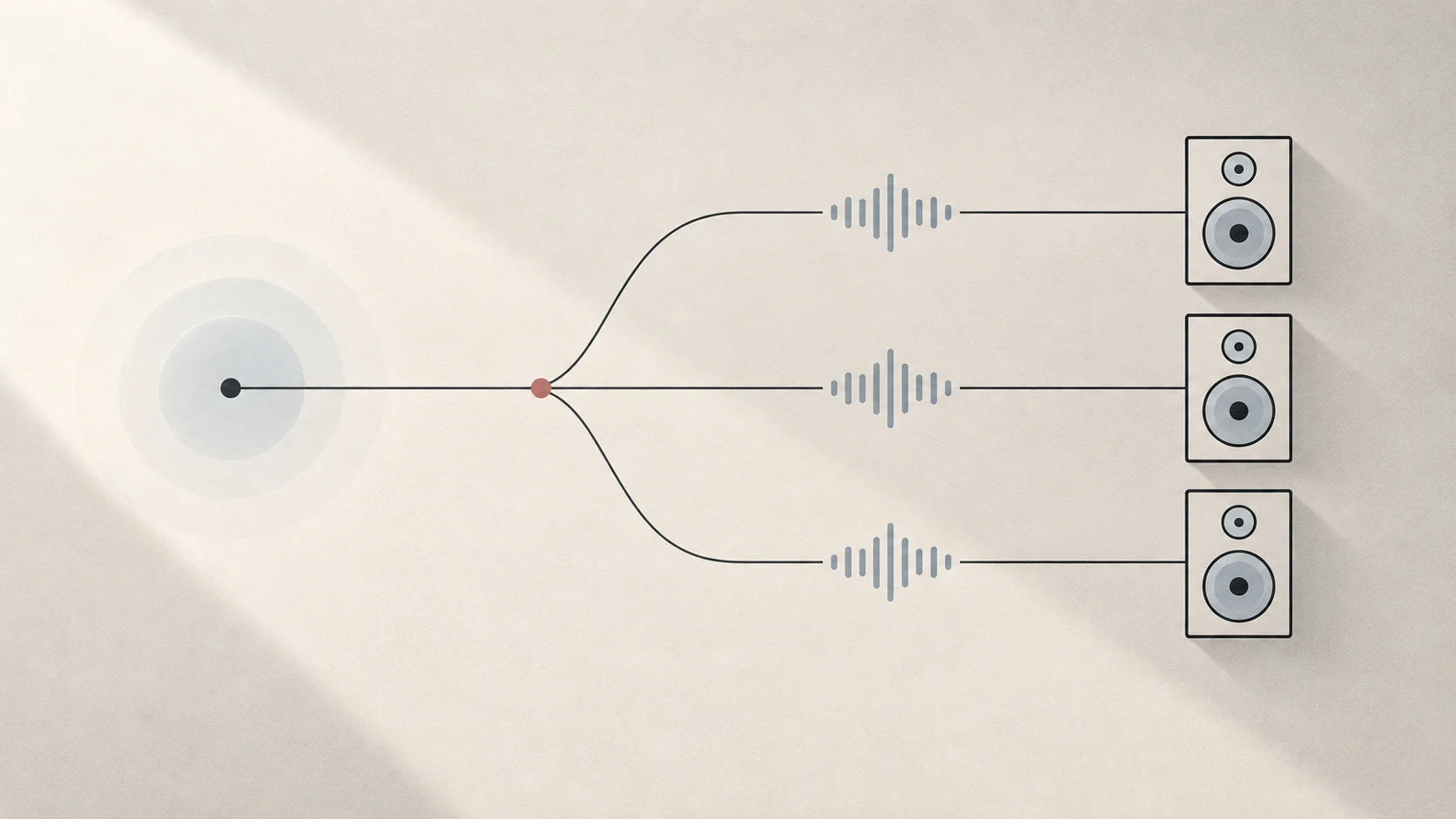
Quick answer: open Audio MIDI Setup, create a Multi-Output Device, select the output devices you want, choose a Primary Device, then select the new virtual device as your Mac’s sound output.
Create a Multi-Output Device
- Connect every speaker, interface, display, or headphone you want to test.
- Open Audio MIDI Setup from Applications → Utilities.
- Choose Window → Show Audio Devices if the device list is hidden.
- Click the + button and choose Create Multi-Output Device.
- Select Use beside each output you want in the group.
- Choose a Primary Device.
- Open System Settings → Sound → Output and select the Multi-Output Device.
Apple describes the result simply: audio sent to the primary device also plays through the other devices in the stack. You can rename the virtual device so it is easier to recognize later.
What “Primary Device” means
The primary device anchors the Multi-Output Device. It does not mean that only that speaker receives sound. Every selected output receives the stream.
Independent devices do not necessarily share one hardware clock or one buffering path. If Audio MIDI Setup offers Drift Correction for secondary devices, it is there to compensate for clocks gradually moving apart. It does not remove a fixed delay that one device already has.
Why volume controls may differ
Apple only enables software volume sliders in Audio MIDI Setup when the underlying device provides software volume control. A USB interface, display, Bluetooth speaker, and built-in speaker can therefore expose different controls.
Do not assume that one master slider, the keyboard volume keys, or every individual device slider will be available for every combination. Check the controls that macOS exposes for the actual devices in front of you. When software volume is unavailable, use the speaker, receiver, display, or interface hardware control.
What can go wrong
- One device is missing: confirm it works by itself before adding it to the group.
- The outputs are steadily offset: one device has a different fixed latency. Drift Correction is not designed to remove that offset.
- The outputs start close and separate over time: check clock and Drift Correction settings.
- A wireless output cuts out: test it alone and rule out Bluetooth interference before blaming the group.
- Volume behaves differently: this can be a capability of the physical device, not a broken Multi-Output Device.
Bluetooth speakers do not have one fixed universal limit
macOS does not publish a stable speaker count that applies to every Mac and every device combination. Apple’s general guidance says the number of Bluetooth devices that are practical at once is lower than the theoretical specification limit, and audio devices use more wireless resources. Four classic Bluetooth speakers may stutter, disconnect, or leave one output silent depending on the Mac, speaker combination, and wireless environment. This should not be reduced to a universal three- or four-speaker hard limit.
Tutti prefers an output in normal music mode as the group’s timing reference, corrects gradual drift on the other devices, and tries to restore the intended group after a brief speaker dropout. These protections do not expand the Mac’s Bluetooth radio capacity. If adding a fourth speaker remains unstable, use fewer Bluetooth speakers or replace one with a wired, display, or built-in output. See the full Bluetooth delay, stutter, and dropout guide for a structured test.
Where Tutti fits
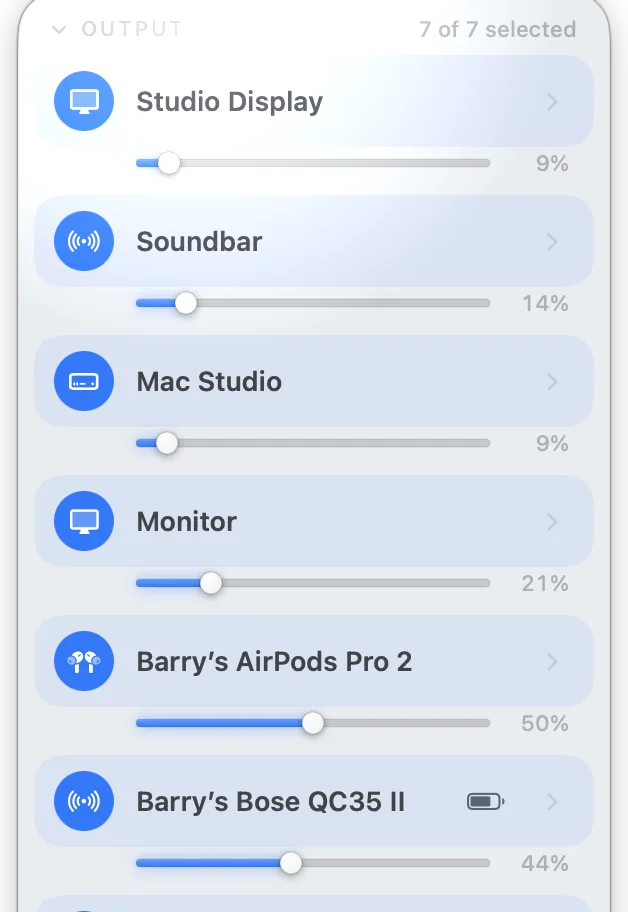
Audio MIDI Setup is enough when you only need a stable group and are comfortable managing its device controls separately. Tutti provides a menu-bar workflow for selecting multiple supported outputs and controlling master and per-device levels together. It does not make an incompatible device compatible, and it cannot make a slow wireless link arrive earlier.
Sources
Want simpler sound and display controls?
Tutti brings audio outputs, app volume and display brightness into one native menu bar panel.
Download Tutti