
How to troubleshoot Bluetooth audio delay on Mac
First separate fixed latency, clock drift, interference, and headset microphone mode. They sound similar, but each requires a different fix.
Updated Sep 20, 2026
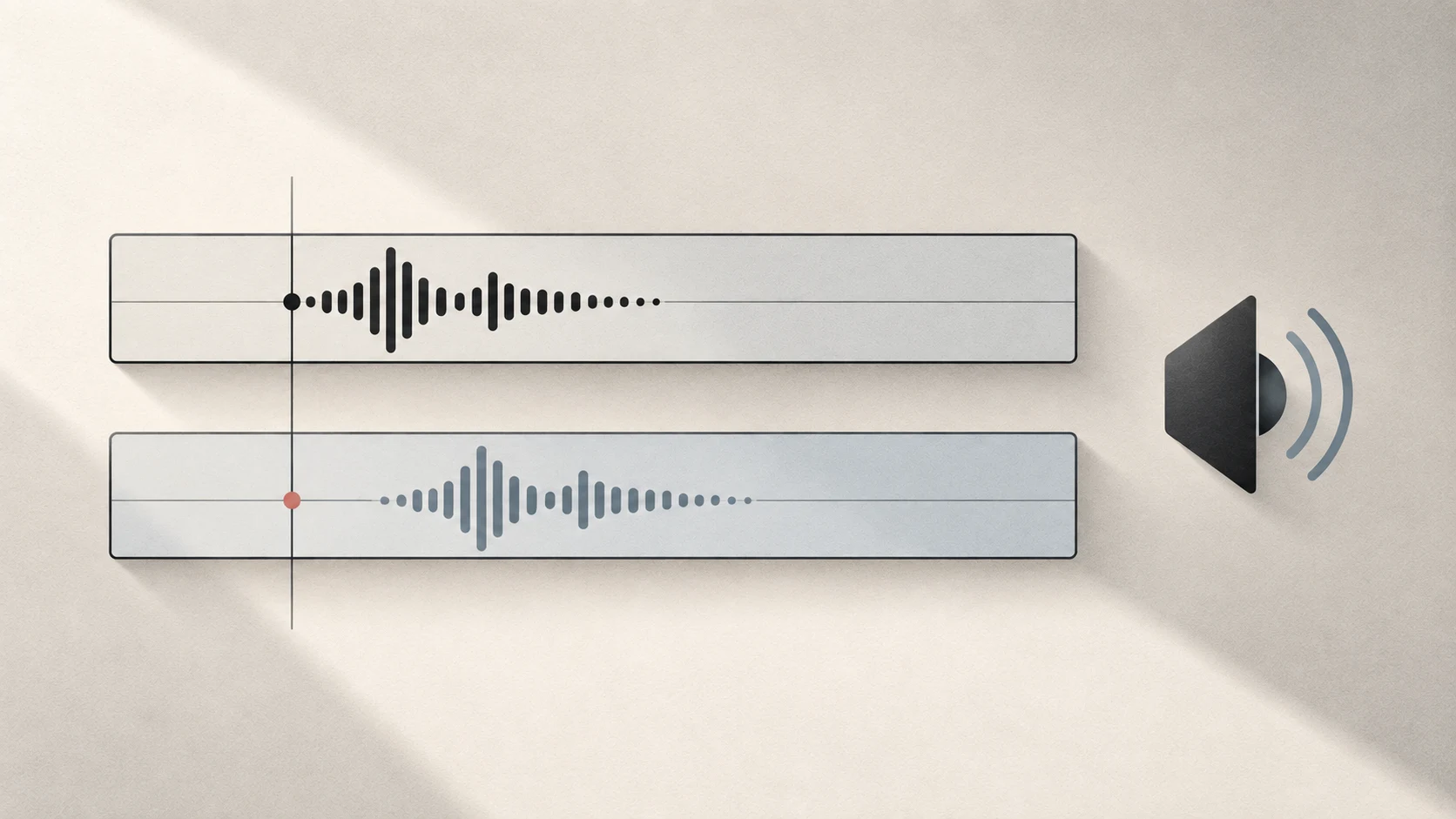
Quick answer: decide whether the sound is consistently late, slowly drifting, breaking up, or changing quality when a microphone starts. There is no trustworthy universal millisecond value for every Mac and Bluetooth device.
Four problems that get called “delay”
| Symptom | Likely class of problem |
|---|---|
| Sound is stable but always later than another output | Fixed latency |
| Outputs begin close, then gradually separate | Changing latency; clock drift is one possible cause |
| Sound cuts out, distorts, or disconnects | Interference or connection quality |
| Headphone quality and volume drop when a call starts | Bluetooth input/output mode |
Using the right name matters. Drift Correction cannot remove fixed latency, and a delay slider cannot repair radio interference.
Test the Bluetooth device alone
Select only the Bluetooth output and play a local audio file. Then compare it with streamed content.
Apple recommends this kind of comparison when wireless audio cuts out or distorts. If local playback is stable but streaming is not, investigate the network or source before rebuilding audio devices.
If both are unstable:
- move the Bluetooth device closer to the Mac;
- remove physical obstructions;
- move away from dense Wi-Fi equipment, poorly shielded cables, microwave ovens, and other wireless speakers;
- forget the Bluetooth device and pair it again if the problem continues.
Why more Bluetooth speakers can become unstable
An archived Apple Bluetooth article says the specification allows more connections than are usually practical: three to four active devices is a realistic general range, and data-intensive devices can reduce it further. This is general guidance, not a current per-Mac guarantee for A2DP speakers, so three or four should not be treated as a universal hard limit.
Classic Bluetooth audio is primarily point to point. When a Mac plays to four classic Bluetooth speakers, it maintains several independent audio links rather than sending one broadcast stream to every speaker. Adding devices increases the demand on the Bluetooth controller and the shared 2.4 GHz environment. If the fourth speaker stutters, disconnects, or stays silent, the audio group itself is not necessarily configured incorrectly.
Use a simple comparison when several Bluetooth speakers are unstable:
- remove one Bluetooth speaker and check whether stability returns immediately;
- use 5 GHz or 6 GHz Wi-Fi where possible to reduce nearby 2.4 GHz traffic;
- replace one Bluetooth output with a wired, display, or built-in speaker;
- move the speakers closer to the Mac and temporarily turn off unused Bluetooth devices.
What Tutti does for multi-speaker playback
Tutti checks the current audio mode of each output. If a group contains both normal music-rate devices and a device that has fallen into a low-rate voice mode, it prefers a music-rate device as the timing reference so one degraded endpoint does not pull the whole group onto a low-quality clock.
The other outputs use drift correction to compensate for independent hardware clocks moving apart. When a device joins or leaves, Tutti first tries to update the existing group instead of rebuilding everything. If a Bluetooth speaker disappears briefly, Tutti holds the intended group for a short time and tries to add the speaker back when it returns.
These protections improve grouping, clock synchronization, and recovery. They cannot increase the Mac’s Bluetooth radio capacity or guarantee that four classic Bluetooth speakers will remain stable in every environment. If four speakers continue to stutter, disconnect, or leave one output silent, use fewer Bluetooth speakers or mix in a wired output.
Check whether an app is using the microphone
When a chat, meeting, or game uses a Bluetooth headset microphone, Bluetooth switches to a mode that carries input and output together. Apple notes that sound quality and volume can fall, and static or popping can appear.
Quit the app using the microphone or choose the Mac’s built-in microphone, then test output again. This mode change is separate from multi-output synchronization.
Fixed offset versus drift
When comparing Bluetooth with a wired or built-in speaker, use a repeated short click or beat.
- If the spacing stays the same, it is a fixed offset.
- If the spacing grows or changes over time, inspect Clock Source and Drift Correction.
Apple describes Drift Correction as resampling to compensate for data drift between unsynchronized devices. It is not a promise to remove Bluetooth buffering.
What latency adjustment can and cannot do
Tutti can add delay to a faster output so it can be brought closer to a slower one. It cannot subtract delay from the Bluetooth path.
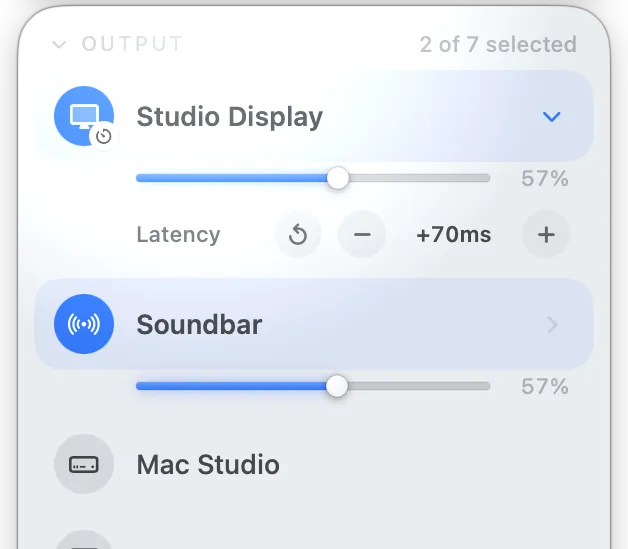
This tradeoff matters for video: delaying every faster speaker to meet Bluetooth may make the whole audio system feel later relative to the picture. Calibrate with the content you actually use, and recheck after changing device mode, firmware, sample rate, or connection.
Bluetooth synchronization limits
Tutti can compensate for a relatively stable time difference by delaying the faster output. It cannot make a slower Bluetooth speaker play sooner. Some Bluetooth devices may fall out of sync after a track change, pause/resume, reconnection or during continuous playback, even when the saved setting stays the same. If adjustment does not hold, try a wired connection or use one output. Neither restoring a saved setting nor a one-time calibration guarantees ongoing synchronization.
A changing time difference alone does not identify the cause. Device clocks, system audio processing and Bluetooth or speaker buffering are different possibilities. A wired connection bypasses Bluetooth but does not guarantee zero latency or perfect synchronization in every setup.
Sources
- Apple: If the sound from your wireless headphones cuts out or is distorted
- Apple: If sound quality is reduced when using Bluetooth headphones with your Mac
- Apple: General limit for Bluetooth devices connected to a Mac (archived)
- Apple: Recommended settings for Wi-Fi routers and access points
- Apple: Connect a Bluetooth device with your Mac
- Apple: Set aggregate device settings
- Bluetooth SIG: LE Audio FAQs
Want simpler sound and display controls?
Tutti brings audio outputs, app volume and display brightness into one native menu bar panel.
Download Tutti