
Can a Mac use AirPods and speakers at the same time?
You can try combining AirPods and another available output in an Audio MIDI Setup Multi-Output Device. Whether a specific AirPods model appears and how closely the outputs align must be checked on the actual Mac.
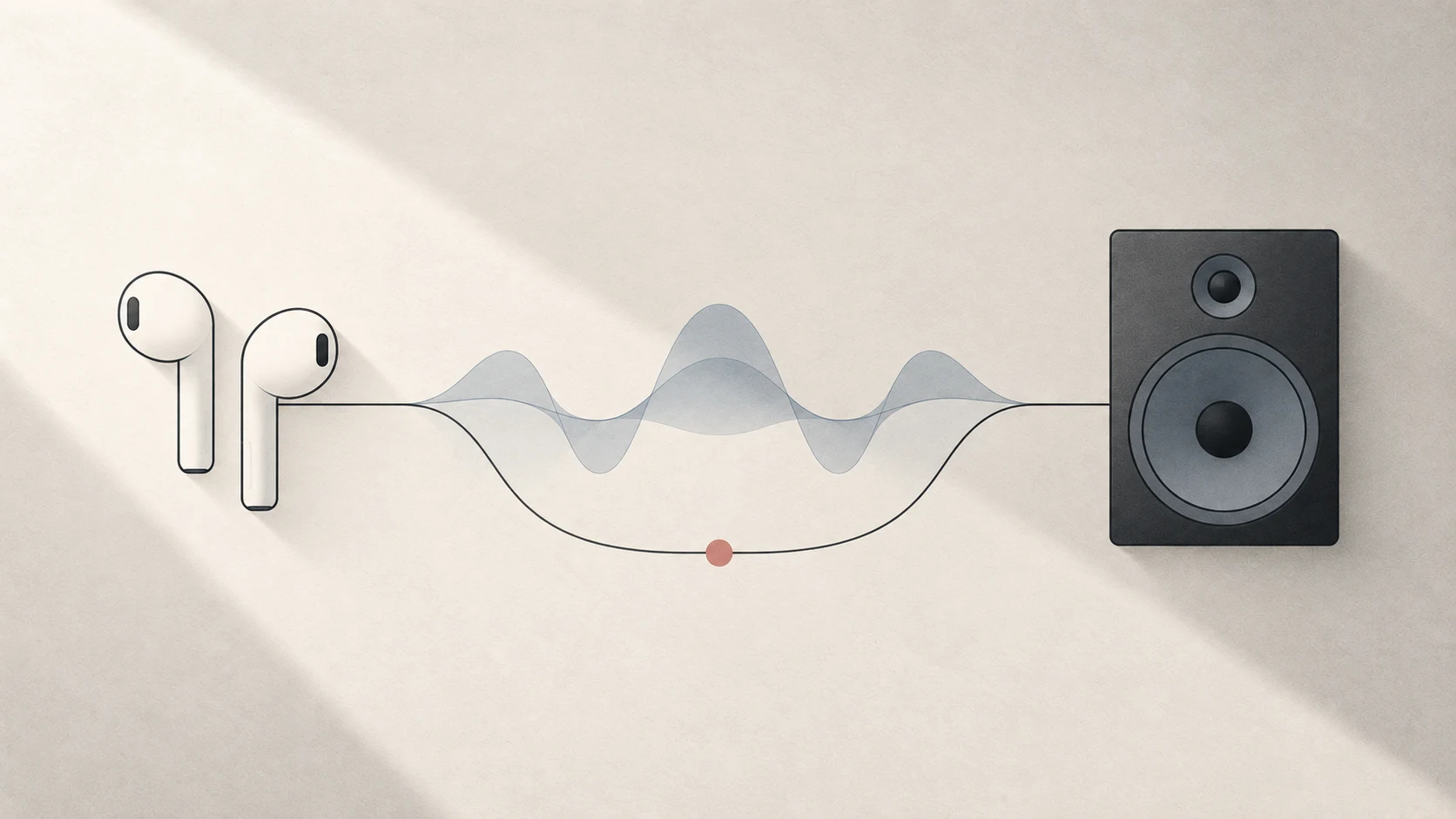
Quick answer: connect the AirPods first, then try adding the AirPods and the other speaker to a Multi-Output Device in Audio MIDI Setup. This is conditional: Apple does not promise that every AirPods and Mac combination will be available or perfectly synchronized.
Check each output first
Before building a group, make sure both outputs work by themselves:
- Connect the AirPods to the Mac.
- Select the AirPods in Control Center or System Settings → Sound → Output and play audio.
- Switch to the Mac speakers or other target output and test that device alone.
If either device cannot play reliably by itself, combining them will not fix the connection.
Try a Multi-Output Device
Open Audio MIDI Setup → Window → Show Audio Devices. Click +, choose Create Multi-Output Device, and look for both the AirPods and the other speaker.
If both appear and can be selected, add them and choose a Primary Device. Then select the new Multi-Output Device as the Mac’s sound output.
The important phrase is “if both appear.” Apple’s Multi-Output guide covers multiple available audio devices, but it does not certify every AirPods model or promise identical timing with Mac speakers.
Test timing with your own devices
Use a short click, drum hit, or spoken syllable. Listen for:
- a stable echo, which suggests a fixed latency difference;
- an alignment that slowly changes, which suggests clock drift;
- dropouts or distortion, which point to connection quality rather than simple delay.
Drift Correction can help independent device clocks avoid gradually separating. It is not fixed-delay compensation and does not make a Bluetooth path faster.
AirPods-specific interruptions
AirPods can switch automatically between Apple devices signed in to the same Apple Account. A call or playback on another device may pull them away from the Mac.
There is also a separate Bluetooth mode issue: when a chat or meeting app uses the AirPods microphone, Apple says Bluetooth switches to a mode that handles input and output together. Audio quality and volume can drop, and static or popping can appear. That is not the same problem as two outputs being slightly out of time.
Where Tutti fits
Tutti can make supported multi-output groups easier to select and manage from the menu bar. Its latency adjustment can add delay to a faster device to try to meet a slower one. It cannot remove latency from the AirPods path, guarantee a model will join the group, or prevent Apple’s automatic switching behavior.
Sources
Want simpler sound and display controls?
Tutti brings audio outputs, app volume and display brightness into one native menu bar panel.
Download Tutti