
How to control external monitor volume on Mac
A Mac can send audio to a display, but software volume depends on what the display and connection expose. Use this checklist to identify whether macOS, the monitor, or the signal path owns the volume.
Updated Sep 19, 2026
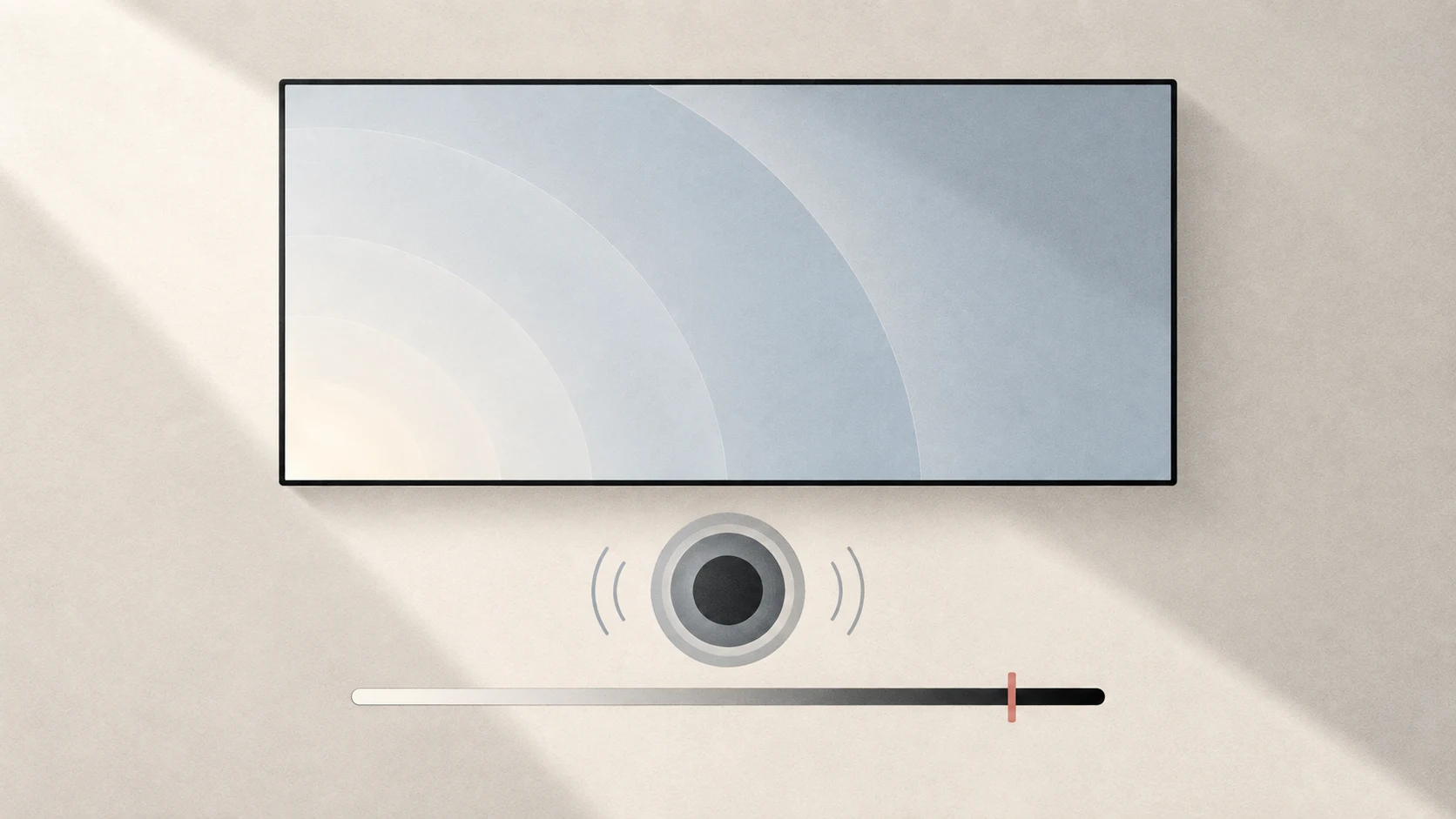
Quick answer: select the display in System Settings → Sound → Output. If the output volume slider works, macOS can control that device in software. If it is unavailable, use the monitor or receiver controls unless the display supports a compatible DDC/CI volume path.
First identify the failure
“Monitor volume does not work” can mean three different things:
- The display does not appear as an audio output.
- It plays audio, but the Mac output slider or volume keys cannot change it.
- Software volume changes, but the keyboard or a third-party control changes the wrong device.
Treating all three as one problem usually leads to the wrong fix.
Make sure the display is the output
Open System Settings → Sound → Output and select the display or HDMI device. Apple notes that a Mac can play through display speakers when the display has them, and HDMI can carry both video and audio.
If the display does not appear:
- confirm that it actually includes speakers or audio output;
- check the selected input and audio settings in the monitor’s on-screen display;
- test a direct cable if a dock or adapter is involved;
- verify that the HDMI or USB-C path supports audio.
Check whether software volume is exposed
Open Audio MIDI Setup → Window → Show Audio Devices, select the display output, and look at its volume controls.
Apple enables the channel volume sliders only when the device provides software volume control. Digital outputs can hand the signal to a receiver or display at a fixed level, leaving volume to the destination hardware. Apple explicitly documents this behavior for Digital Output receivers: the Mac volume controls cannot adjust that output.
Do not turn that example into a rule for every HDMI, DisplayPort, or USB-C monitor. Two displays using the same connector can expose different controls, and a dock or adapter can change the path.
Use the control that owns the volume
| What you see | Best next step |
|---|---|
| macOS output slider works | Use the system slider, menu bar, or volume keys |
| Slider is unavailable, monitor has buttons or a remote | Use the monitor’s hardware or on-screen control |
| Monitor supports DDC/CI audio volume | Enable DDC/CI in the monitor and test a compatible controller |
| Display is connected through a dock | Test direct connection before assuming the display is unsupported |
Where Tutti fits
Tutti can discover some displays that respond to DDC/CI audio-volume commands and match them to a Core Audio output. It deliberately avoids binding when the match is ambiguous, because changing the wrong identical display is worse than showing no control.
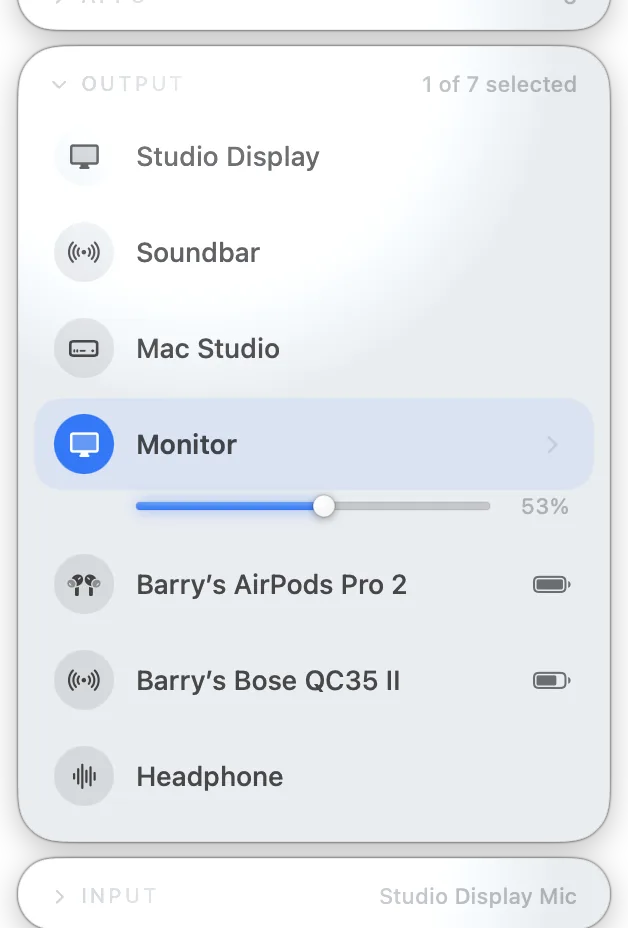
This is not universal monitor support. Compatibility depends on the display model, its DDC/CI implementation, the selected input, cable, adapter, and dock. If the display does not respond, its physical controls or vendor tool remain the reliable fallback.
Need to adjust screen brightness too?
Display volume and brightness are separate controls. Read the external monitor brightness guide or learn about Extra Dim and full black.
Sources
Want simpler sound and display controls?
Tutti brings audio outputs, app volume and display brightness into one native menu bar panel.
Download Tutti