
How to control the volume of each app on Mac
macOS has one output volume control, but no built-in system-wide mixer for every app. Here is what the native controls can do and how Tutti adds per-app volume on macOS 14.4 or later.

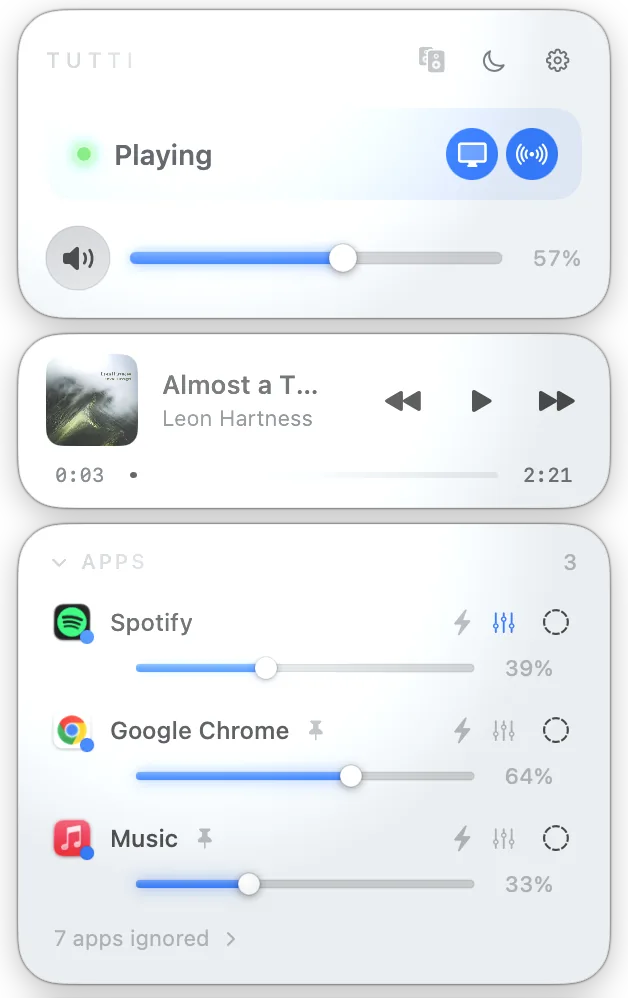
Quick answer: macOS Sound settings control the current output device, not every app separately. First use an app’s own volume control if it has one. For one menu-bar mixer across compatible apps, Tutti adds per-app volume on macOS 14.4 or later.
What macOS gives you
Open System Settings → Sound → Output and you can select an output device, change its output volume, mute it, and adjust balance when the device supports those controls.
That output slider is the ceiling for the whole device. Apple explains that an app with its own volume control, such as Music, can play at the same level or lower than the system output; it cannot turn itself above the system setting.
What you do not get in System Settings is a Windows-style list with one slider for every running app. Some apps expose their own slider, some follow only the system output, and some split audio across helper processes.
Control one app with Tutti
- Install and open Tutti on a Mac running macOS 14.4 or later.
- Enable App Audio when macOS asks for System Audio Recording access. This permission lets Tutti process outgoing app audio; it does not turn Tutti into a microphone recorder.
- Start playback in the target app so it appears in Tutti’s Apps section.
- Drag that app’s slider. Pull it to zero to silence only that app while other Mac audio continues.
Why permission is required
Apple’s Core Audio Process Tap can capture outgoing audio from a process or group of processes. A tap can mute the original process while an audio tool processes and replays the result. Tutti uses this native Core Audio path instead of installing a virtual audio driver or system extension.
The permission wording can sound broader than the job being done. In this case, the relevant signal is outgoing system audio from the app you choose to control.
If an app does not respond
Per-app audio is not a promise that every app has the same process model. Check these points before assuming the slider is broken:
- Confirm the app is actively playing audio.
- Confirm Tutti has System Audio Recording permission.
- Check that the app is not in Tutti’s ignored-app list.
- Restart the target app after granting permission.
- Record the macOS version, app version, and exact playback path when contacting support.
Electron and other multi-process apps can move playback between helper processes. Protected or unusual audio paths may also behave differently. Tutti should therefore be described as working with compatible apps, not every app without exception.
When the native control is enough
Use the app’s own slider when you only need to change one app and it already provides a reliable control. Use System Settings when you want to change the whole output device. A shared per-app mixer becomes useful when several apps need different levels, or when you want those controls next to multiple-output and device-volume controls.
Sources
Want simpler sound and display controls?
Tutti brings audio outputs, app volume and display brightness into one native menu bar panel.
Download Tutti