
Why Bluetooth headphones sound muffled on Mac calls (and how to fix it permanently)
AirPods, Sony WH-1000XM, and Bose headsets drop to tinny 16 kHz mono whenever an app opens the Bluetooth mic on Mac. Learn why macOS switches from A2DP to HFP/SCO and how to stop it automatically.
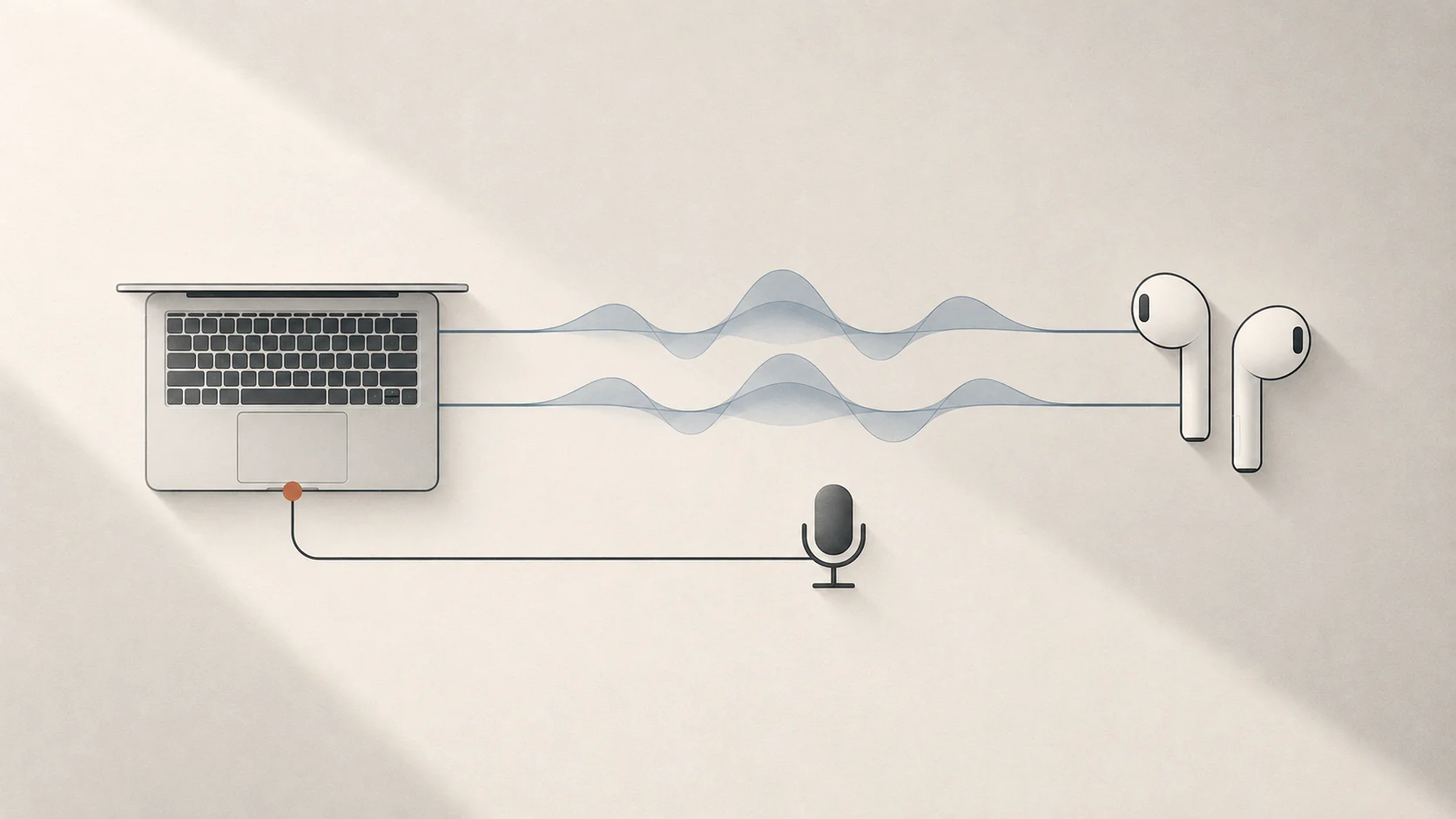
Quick answer: Bluetooth headphones sound muffled or tinny on Mac calls because macOS switches the headset from high-quality stereo (A2DP) to low-bandwidth mono (HFP / SCO) the moment any app activates the headset’s microphone. Switching your Mac’s input to its built-in mic or a USB mic restores full stereo immediately—and Tutti can enforce that automatically so macOS and meeting apps stop flipping it back.
Why Bluetooth audio suddenly turns tinny during calls
Whether you use AirPods, Sony WH-1000XM, Bose QuietComfort, or another Bluetooth headset, the symptom is the same: music, YouTube, or game audio sounds crisp until Zoom, Microsoft Teams, Discord, FaceTime, or a browser tab requests microphone access. Suddenly everything collapses into flat, telephone-like audio—and sometimes stays stuck that way even after you leave the call.
The cause is a hardware protocol limit in Bluetooth Classic:
| Bluetooth Profile | Direction | Typical Quality | When macOS uses it |
|---|---|---|---|
| A2DP (AAC / SBC) | Playback only | High-bitrate stereo (44.1 / 48 kHz) | Normal listening when the headset microphone is not selected |
| HFP / SCO (Hands-Free Profile) | Playback + Mic | Low-bitrate 16 kHz mono | Any time macOS or an app opens the headset’s built-in mic |
Bluetooth Classic cannot carry full-bandwidth stereo playback and microphone input over the same link simultaneously. As soon as your headset is used for input, macOS downgrades the entire link to HFP/SCO.
The manual macOS workaround (and why it breaks)
You can fix the quality drop manually without third-party tools:
- Open System Settings → Sound → Input.
- Change the input device away from your Bluetooth headphones to MacBook Pro Microphone, Studio Display Microphone, or a USB desk mic.
- Check the audio input setting inside Zoom, Teams, or Discord so the app is not overriding the system mic.
That restores stereo A2DP immediately, but it rarely stays fixed. Reconnecting your headphones, waking your Mac from sleep, or joining a new browser call often causes macOS or the app to switch input right back to the Bluetooth headset.
Fix it automatically with Tutti
Tutti handles both sides of the problem so your Bluetooth headphones stay in high-quality stereo without manual babysitting:
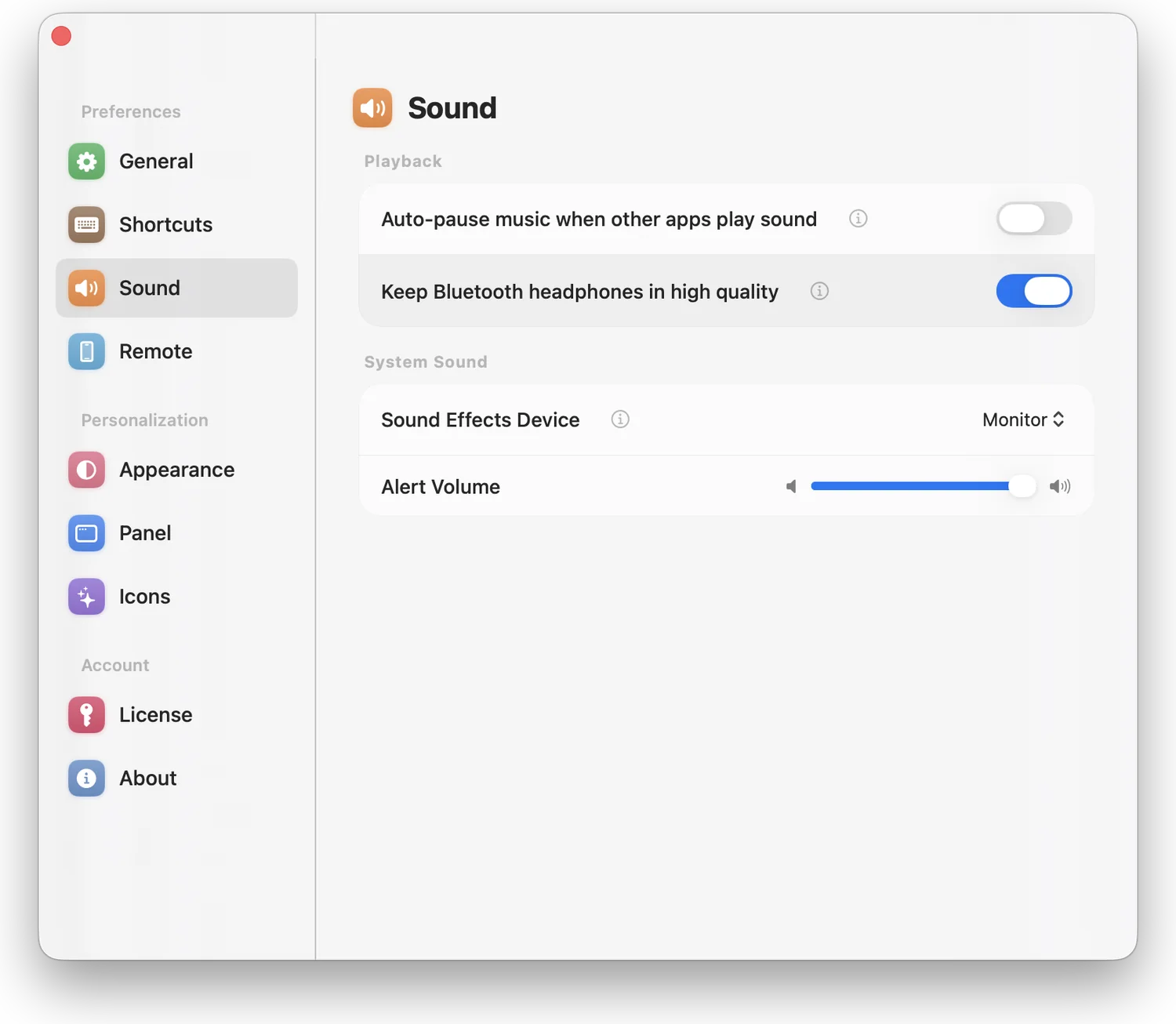
- Keep Bluetooth headphones in high quality (
Settings → Control → Playback): whenever Bluetooth headphones are active, Tutti keeps audio input routed to your Mac’s built-in microphone or your preferred desk mic. Your headphones stay in full stereo A2DP during calls and never get stuck in muffled mode afterward. - Audio Guard — Lock input device: locks your preferred microphone as the default input so Zoom, browser tabs, or newly connected headsets cannot hijack it behind your back.
Quick checklist if audio still sounds muffled
- Check app-specific mic menus: apps like Zoom, Discord, and Slack can pick a microphone independently of macOS. Set their microphone option to Same as System or directly to your Mac/USB mic.
- Close lingering browser tabs: a Meet, Teams, or dictation tab left open in the background can hold a Bluetooth microphone stream open long after a meeting ends.
- Avoid double-forcing HFP: if you specifically need to walk away from your desk and use the AirPods mic, you can toggle the option off temporarily and re-enable it when you are back at your Mac.
Sources
Want simpler sound and display controls?
Tutti brings audio outputs, app volume and display brightness into one native menu bar panel.
Download Tutti