Headphone Correction & AutoEq on Mac: how profiles work and how to set them up
Learn how headphone frequency-response correction works, what Tutti 2.0's built-in 1,511-profile offline OPRA catalog covers, how to read and import Equalizer APO / AutoEq .txt files, and how to pair correction with 6-band Output EQ.
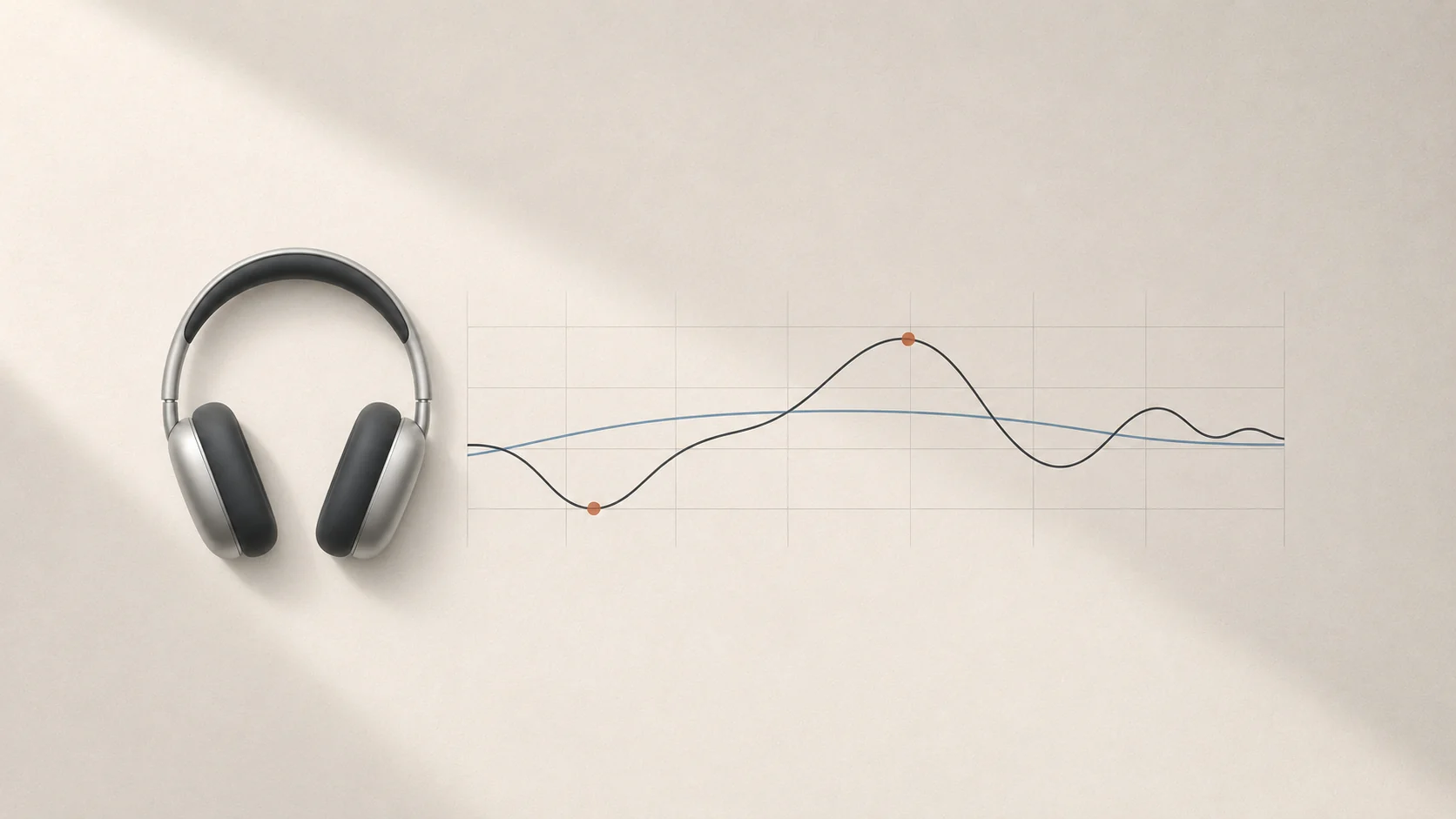
Quick answer: Every headphone model has its own frequency-response peaks and dips. Headphone Correction applies an inverse parametric EQ curve so your headphones sound closer to a balanced reference target (such as the Harman target). Tutti 2.0 includes an offline OPRA catalog of 1,511 profiles across 755 models and 174 brands, plus direct import for Equalizer APO / AutoEq
.txtfiles.
Why headphones benefit from frequency-response correction
Even well-regarded headphones rarely measure flat. Some models bloat upper bass and make vocals sound muddy, others dip in the midrange so voices recede, and many have sharp treble peaks that cause fatigue during long listening sessions.
Headphone Correction takes acoustic measurements of a specific headphone model and builds an inverse parametric EQ curve. Instead of guessing with broad tone controls, it tames exact resonant peaks and fills narrow dips so the headphone tracks a neutral reference curve such as the Harman target.
Built-in offline OPRA catalog in Tutti 2.0
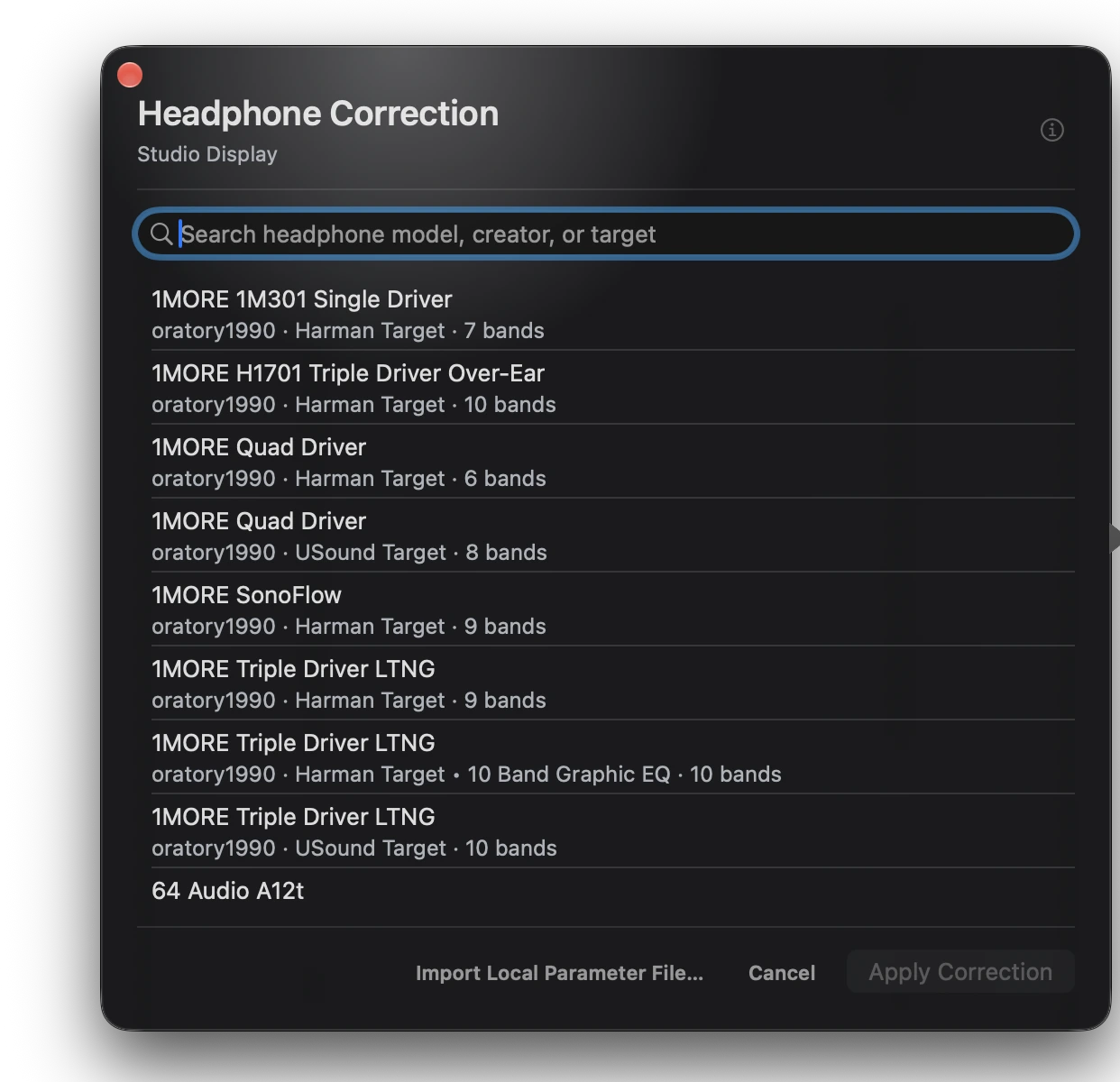
Tutti 2.0 ships its Headphone Correction library completely offline inside the app—no account, no cloud sync, and no external downloads required.
- 1,511 profiles in total: 1,043 from oratory1990 and 468 from Rtings / AutoEQ.
- 755 unique headphone models across 174 brands, covering everyday wireless sets and studio references alike—including AirPods, Sony WH-1000XM series, Bose, Sennheiser HD series, Beyerdynamic, Audio-Technica, Focal, and Hifiman.
- Multiple variants per model: popular headphones often include several entries for different earpads, ANC on/off states, or target curves, so you can switch and audition them live while listening.
What is inside a Headphone Correction .txt profile
If your headphone is not in the built-in catalog—or you have a custom measurement from AutoEq, squig.link, or oratory1990—Tutti imports standard Equalizer APO / AutoEq parametric .txt files directly. A typical profile looks like this:
Preamp: -6.2 dB
Filter 1: ON LSC Fc 105 Hz Gain 5.5 dB Q 0.71
Filter 2: ON PK Fc 240 Hz Gain -2.4 dB Q 1.20
Filter 3: ON HSC Fc 8000 Hz Gain -1.8 dB Q 0.71
Each field controls a specific part of the correction curve:
| Field | Range / Values | What it does |
|---|---|---|
Preamp | -24.0 to +12.0 dB | Overall input gain applied before the filters. Usually negative because boosting a frequency band (for example, +5.5 dB) can push audio peaks over 0 dBFS and cause digital clipping; negative preamp creates headroom automatically. |
| Filter type | PK, LSC, HSC | PK (Peak) boosts or cuts around a single center frequency; LSC (Low Shelf) lifts or lowers all bass below Fc; HSC (High Shelf) brightens or softens all treble above Fc. |
Fc | 20–20,000 Hz | Center frequency (for PK) or corner frequency (for LSC / HSC). |
Gain | -24.0 to +24.0 dB | Amount of boost (positive) or cut (negative) for that band. |
Q | 0.1–12.0 | Bandwidth or sharpness. A low Q (around 0.71) creates a wide, gentle slope; a high Q creates a narrow, surgical notch. |
Import limits in Tutti
- Plain UTF-8
.txtfile up to 64 KB. - Comment lines starting with
#are ignored automatically. - Up to 32 filter bands (
Filter 1:throughFilter 32:).
Pairing Headphone Correction with 6-band Output EQ and Presets
Output processing runs on local Core Audio outputs on macOS 14.4 or later. A clean way to tune your headphones is to separate correction from taste:
- Open the effects side panel on your headphone output row in Tutti and enable Headphone Correction.
- Pick your model from the offline catalog (or import a
.txtprofile) to establish a neutral, balanced baseline. - Turn on Tutti’s 6-band Output EQ after correction for personal preference—for example, adding a subtle bass lift for movies or gently softening upper treble for late-night listening.
- Save the complete output chain into a Preset so you can switch between neutral reference listening, movies, and calls with a single click.
Sources
Want simpler sound and display controls?
Tutti brings audio outputs, app volume and display brightness into one native menu bar panel.
Download Tutti